General
The LinX CGM System tracks glucose levels continuously throughout the day. A tiny sensor is inserted just underneath the skin using an applicator and secured with an adhesive patch. It measures glucose in the interstitial fluid (fluid between the cells) every minute for up to 15 days. This data is automatically transferred every minute via Bluetooth to the user's LinX App on their mobile device (iOS and Android compatible).
- Individuals with Type 1 diabetes or insulin-treated Type 2 diabetes
- Adults aged 18 and older
- Patients requiring continuous glucose monitoring for tighter glycaemic control
Approximately 2-4 meters without obstruction.
Yes. The LinX App allows you to share your real-time data with up to 20 followers. Followers can view your glucose levels and receive alerts for highs and lows. Visit the App's “Follow and Share” section to activate this function.
The sensor is an all-in-one device powered by a small internal battery built into the unit. This battery supplies power for both glucose sensing and wireless data transmission throughout the sensor's wear time. The battery is not replaceable, and the entire sensor unit is disposed of and replaced once it reaches its 15-day lifespan.
The sensor records and stores glucose data every one minute. This data is continuously transmitted via Bluetooth to a paired mobile device, where it is securely stored for ongoing monitoring and analysis on the LinX App.
No, LinX is currently a stand-alone CGM System and is not compatible with insulin pumps.
The LinX App on your mobile device can communicate with compatible smartwatches. With CGM watch integration, your glucose values can be visible with a glance at your wrist.
For more information on compatible watches and how to pair, consult the Compatible Watch section under your LinX App profile.
Keep in mind that your smart watch communicates with your mobile device, and not the sensor. The watch needs to be in range with your mobile device in order to receive glucose data via Bluetooth.
If you are uncertain, please contact us at diabetes@homemed.co.za
The sensor measures glucose levels in the interstitial fluid (fluid between the cells), while a fingerstick, using a blood glucose meter, measures blood plasma glucose. There is a natural lag between sensor glucose and blood glucose levels, especially when glucose levels are changing rapidly.
It's important to focus on trends and patterns, not the exact glucose values.
- Airport: It is safe to wear with metal detectors and common electromagnetic interference. Avoid full-body scanners that use x-rays or millimetre-wave technology.
- Medical Imaging: Do not wear the sensor during MRI, CT scans or diathermy. These procedures can damage the device and affect accuracy.
| Device | CGM Size (mm) |
|---|---|
| LinX5 | 22 (diameter) x 4.22 |
| Freestyle Libre 26 | 35 (diameter) x 5 |
| Anytime CT36 | 39 X 30 X 7 |
| Dexcom G66 | 46 x 30 x 15 |
| Dexcom G77 | 24 x 27.3 x 4.6 |
| Dexcom ONE+7 | 24 x 27.3 x 4.6 |
| Guardian Connect 46 | 35 x 28 x 7 |
| Simplera8 | 28.6 x 28.6 x 4.7 |
| Sibionics9 | 33.5 x 20 x 5.3 |
| Accu-Chek SmartGuide10 | 33.3 (diameter) x 5.9 |
| Syai11 | 19.4 x 20 x 3.6 |
| Yuwell Anytime 5Pro12 | 23 (diameter) x 4.4 |
| iCan i613 | 23.3 (diameter) x 3.95 |
| HiPPO H114 | 22 (diameter) x 4 |
References:
- MicroTech Medical. 2025. Products: LinX Continuous Glucose Monitoring System Sensor. Available at: https://www.microtechmd.com/products/linx [Accessed 01 August 2026]
- From Insight to Impact: CGM's Journey to the Mainstream. 2024. Diabetotech. Available at: https://www.diabetotech.com/blog/cgm-updates [Accessed 01 August 2026]
- Dexcom. 2026. Find the right Dexcom CGM System for you. Available at: https://www.dexcom.com/en-GB/compare-cgm-systems [Accessed 01 August 2026]
- Association of Diabetes Care & Education Specialists (ADCES). 2024. Diabetes Technology: CGMS. Medtronic Simplera Sync. Available at: https://www.adces.org/education/danatech/glucose-monitoring/continuous-glucose-monitors-(cgm)/view-compare-cgms/product-detail/medtronic-simplera-sync [Accessed 01 August 2026]
- Altys Group. 2026. Sibionics GS1 CGM System. Available at: https://altysgroup.com/sibionics/ [Accessed 01 August 2026]
- Accu-Chek SmartGuide User’s Manual. Accu-Check SmartGuide App. 2024. Available at: https://www.accu-chek.co.uk/support/smartguide-cgm#user-downloads-section [Accessed 01 August 2026]
- Syai Health Technology. 2026. Package Configuration. Available at: https://www.syai.com/ [Accessed 01 August 2026]
- Made-in-China. 2026. Available at: https://hiprove.en.made-in-china.com/product/ItHrbKYURpRn/China-Anytime-CT5-PRO-Cgm-Blood-Glucose-Monitor-Dynamic-Diabetes-Testing-Device-Real-Time-Blood-Sugar-Test-Continuous-Glucose-Sensor-Monitoring-System.html?pv_id=1ju5evda8bc7&faw_id=1ju5evgg9c53&bv_id=1ju5evk9cfbc&pbv_id=1ju5evchq26u [Accessed 01 August 2026]
- Sinocare iCan. 2023. Available at: https://ph.icancgm.com/products/ican-i6/ [Accessed 01 August 2026]
- Diabetotech: Expert Tips for Managing Diabetes. 2026. Available at: https://www.youtube.com/watch?v=RLF-V5xSeoU&t=1s [Accessed 01 August 2026]
Sensor
Yes, the LinX Sensor is water resistant (IP68) and can be worn during bathing, showering or swimming, up to a maximum depth of 1.5 metres for up to 30 minutes.
The LinX Sensor is the innovative Continuous Glucose Monitoring (CGM) technology brought to you by Homemed (Pty) Ltd. It is the smallest, all-in-one 15-day sensor in South Africa used to continuously monitor your glucose levels in the fluid between the cells. It automatically transfers glucose readings every minute to the LinX App on your mobile device.
The sensor is designed to be worn on the back of the upper arm.
Up to 15 days.
The LinX Sensor is the smallest all-in-one device in South Africa.
It is 22 mm in diameter and 4.22 mm thin. It is the size of a 50 cent coin.
No, the LinX Sensor is an all-in-one device.
No, it is factory calibrated. Calibration is optional if:
- There's a ≥20% variance between your sensor and blood glucose reading
- Your symptoms don't align with the sensor reading
Calibration Guidelines:
- Calibration is optional and should only be performed if there is a ≥20% variance between your sensor and blood glucose reading and/or your symptoms don't align with the sensor reading.
- If you need to calibrate a sensor, kindly note:
- It is best done during stable glucose periods (e.g., fasting in the morning) or when you see a horizontal trend arrow on the Home page of the LinX App
- Avoid calibration 15 minutes after meals, insulin, or exercise when glucose levels are changing rapidly
- Do not calibrate if the sensor reading is below 5 mmol/L or above 15mmol/L
- Avoid calibrating more than once a day
- Do not calibrate within the first 24 hours of sensor wear
- Ensure calibration is saved successfully — look for the red blood droplet icon on the graph on the App's home page
- Select the “Finger Stick” tab at the bottom of the LinX App home page.
- Enter your blood glucose value, as measured with your glucometer within 5 minutes
- Select the appropriate “Recording Period.”
- Select “Calibrate” once.
If successfully saved and calibrated, a red blood droplet will appear on the graph on the App's home page
If the value is only saved (not calibrated), a green blood droplet will appear — this will not align the sensor and blood glucose readings but only save the value.
LinX APP
- iPhone: Available on the Apple App Store
- Android: Available on the Google Play Store
- Huawei: Search for “LinX CGM App” using your Google browser
- Enter your email address.
- Create a password that includes:
- At least one uppercase letter
- At least one lowercase letter
- At least one number and one special character
- Re-enter your password to confirm they match.
- Click "Send Verification Code".
- Check your email for the verification code and enter it within 60 seconds.
- If you are able to successfully download the LinX CGM App on your mobile device and register an account, then your device is compatible.
- Once your sensor is inserted, tap the Personal Profile icon (top right corner).
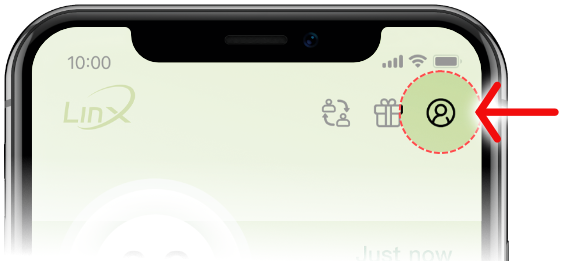
- Select “Pairing” from the menu.
- A list of nearby sensors will appear — choose the sensor that matches the serial number displayed on your sensor box.
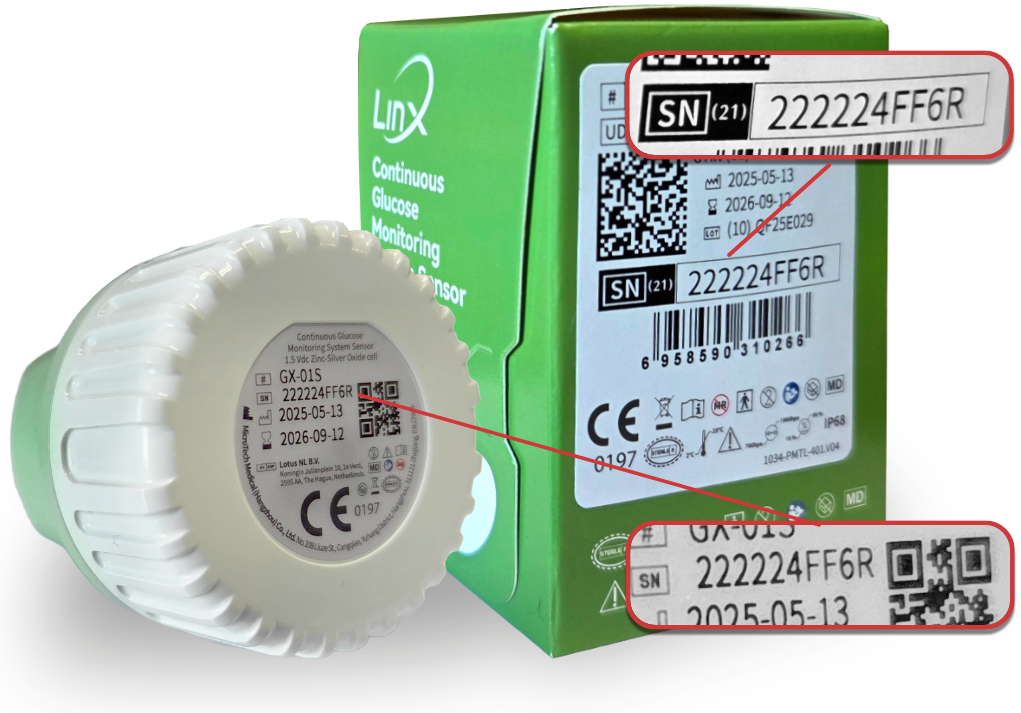
- Tap “Pair” to complete the connection.
- All previously used sensors will be stored under “Historical Devices.”
- Only one email address can be paired with a sensor at a time. If you wish to change your email address during sensor wear, you will need to unpair the current one first, then pair the sensor with the new email address.
Both the Sharer and Follower need to have a registered LinX Account
Share/Follow function on the LinX App:
- On the Patient's Mobile Device:
- Select the Personal Profile icon on the home page (top right corner).
- Select Share/Follow
- Select Add Follower
- Once added, the follower will appear under "My Follows"
- On the Follower's Mobile Device:
- Install the LinX CGM app from the App Store or Google Play Store
- Register an account using the follower's email address
- Select “Next” through all the onboarding information until you reach the Home screen
- Select the Sharing icon (top right, next to the profile icon) to view the patient's data
Trend arrows on the LinX App home page display the direction and speed (rate of change) of sensor glucose levels so that you may take immediate action to prevent any incidents such as a hypo- or hyperglycaemic event
- Select the “Events” tab at the bottom of the LinX App home page.
- Enter relevant details such as:
- Meals - a green apple icon will appear on your home graph
- Exercise - a person running icon will appear
- Medication - a capsule icon will appear
- Insulin - an injection icon will appear
- Other Notes - a notebook icon will appear
All logged events will be displayed on your Home Graph and will also be included in your Ambulatory Glucose Profile (AGP) Report.
The LinX App allows you to personalise glucose alerts. In the Alerts dashboard you can specify high, low and urgent low glucose values. You can also choose to be alerted when glucose is rapidly rising or falling, or when signal is lost between the sensor and LinX App.
- Select the Personal Profile icon on the home page (top right corner).
- Select Reminder Settings
- Choose your Alert Method and Frequency
- Enable the alerts you wish to receive and personalise the values
It is highly recommended to always enable the Urgent Low BG Alert, and to set this frequency to 5 minutes.
In order to receive alerts, all permissions on your mobile phone need to be enabled and the LinX App needs to be running in the background.
Alerts can only be received when all permissions are enabled, the sensor and mobile phone is within 2 metres from each other and the LinX App is running in the background.
The records of alerts will also be displayed in the History dashboard.
To export an Ambulatory Glucose Profile (AGP) Report:
- Select the “Trends” tab in the app.
- Select the date range you'd like to export (make sure the sensor has been worn for more than 5 days — this is indicated by red dots on the graph).
- Tap the PDF icon in the top-right corner to export the data.
- Choose how to share the file — via WhatsApp or Email.
Troubleshooting
- Select your Personal Profile on the Linx App home page (top right corner)
- Select Account Security
- Select Log out and Confirm
- Switch Bluetooth off
- Restart your phone
- Switch Bluetooth back on
- Log in again (do not register a new account)
- If the issue persists, contact the LinX WhatsApp helpline: 079 832 6825
If you accidentally recorded incorrect information under the Events tab, such as the incorrect dose, incorrect meal data or incorrect time, you can delete this data under the History tab.
- Select the History tab on the home screen
- Select the date at the top and scroll down to view all the recorded events
- To delete an event, swipe to the left and select the Trash icon