LinX APP
- iPhone: Available on the Apple App Store
- Android: Available on the Google Play Store
- Huawei: Search for “LinX CGM App” using your Google browser
- Enter your email address.
- Create a password that includes:
- At least one uppercase letter
- At least one lowercase letter
- At least one number and one special character
- Re-enter your password to confirm they match.
- Click "Send Verification Code".
- Check your email for the verification code and enter it within 60 seconds.
- If you are able to successfully download the LinX CGM App on your mobile device and register an account, then your device is compatible.
- Once your sensor is inserted, tap the Personal Profile icon (top right corner).
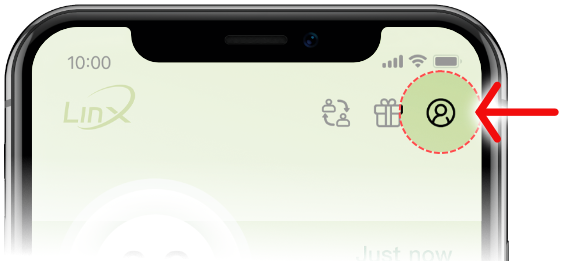
- Select “Pairing” from the menu.
- A list of nearby sensors will appear — choose the sensor that matches the serial number displayed on your sensor box.
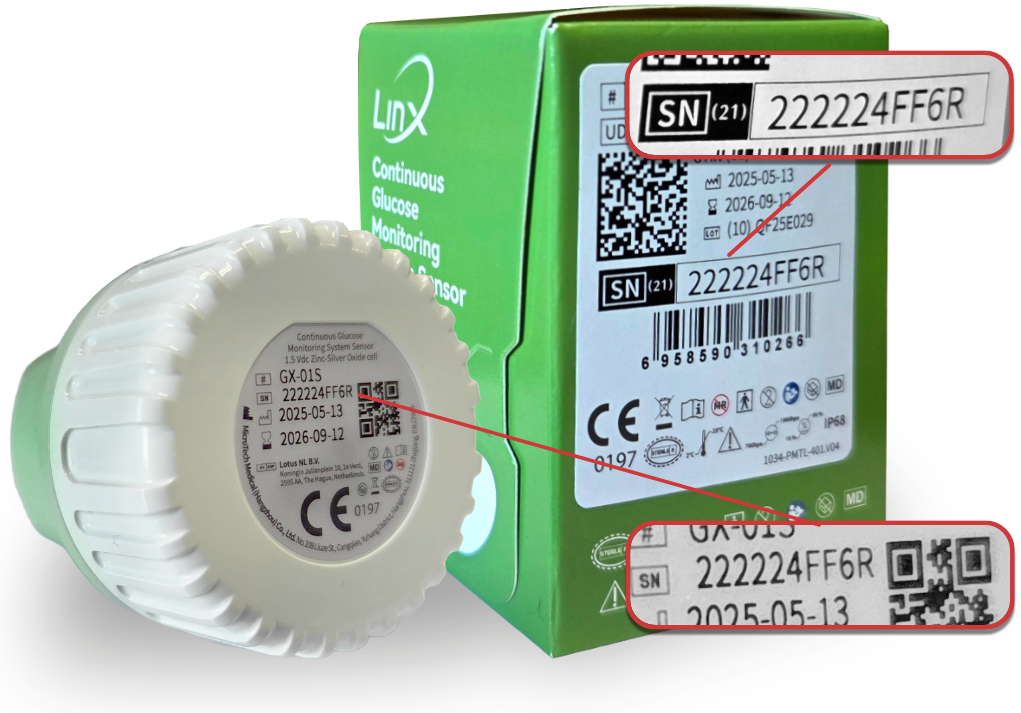
- Tap “Pair” to complete the connection.
- All previously used sensors will be stored under “Historical Devices.”
- Only one email address can be paired with a sensor at a time. If you wish to change your email address during sensor wear, you will need to unpair the current one first, then pair the sensor with the new email address.
Both the Sharer and Follower need to have a registered LinX Account
Share/Follow function on the LinX App:
- On the Patient's Mobile Device:
- Select the Personal Profile icon on the home page (top right corner).
- Select Share/Follow
- Select Add Follower
- Once added, the follower will appear under "My Follows"
- On the Follower's Mobile Device:
- Install the LinX CGM app from the App Store or Google Play Store
- Register an account using the follower's email address
- Select “Next” through all the onboarding information until you reach the Home screen
- Select the Sharing icon (top right, next to the profile icon) to view the patient's data
Trend arrows on the LinX App home page display the direction and speed (rate of change) of sensor glucose levels so that you may take immediate action to prevent any incidents such as a hypo- or hyperglycaemic event
- Select the “Events” tab at the bottom of the LinX App home page.
- Enter relevant details such as:
- Meals - a green apple icon will appear on your home graph
- Exercise - a person running icon will appear
- Medication - a capsule icon will appear
- Insulin - an injection icon will appear
- Other Notes - a notebook icon will appear
All logged events will be displayed on your Home Graph and will also be included in your Ambulatory Glucose Profile (AGP) Report.
The LinX App allows you to personalise glucose alerts. In the Alerts dashboard you can specify high, low and urgent low glucose values. You can also choose to be alerted when glucose is rapidly rising or falling, or when signal is lost between the sensor and LinX App.
- Select the Personal Profile icon on the home page (top right corner).
- Select Reminder Settings
- Choose your Alert Method and Frequency
- Enable the alerts you wish to receive and personalise the values
It is highly recommended to always enable the Urgent Low BG Alert, and to set this frequency to 5 minutes.
In order to receive alerts, all permissions on your mobile phone need to be enabled and the LinX App needs to be running in the background.
Alerts can only be received when all permissions are enabled, the sensor and mobile phone is within 2 metres from each other and the LinX App is running in the background.
The records of alerts will also be displayed in the History dashboard.
To export an Ambulatory Glucose Profile (AGP) Report:
- Select the “Trends” tab in the app.
- Select the date range you'd like to export (make sure the sensor has been worn for more than 5 days — this is indicated by red dots on the graph).
- Tap the PDF icon in the top-right corner to export the data.
- Choose how to share the file — via WhatsApp or Email.